Thursday, November 27, 2014
How to get the count of List items in List using ECMA Script in SharePoint 2010 ,2013
Hi Guys,
Thanks for visiting our blog .
In our previous post we were seen how ecma scripts works. To Know more ECMA Script Click here.
In our current post we are going to see how we can get the count of list items inside Sharepoint lists. without using visual studio or server object model.
Before client object model introduced . if we want to implement the same concept we should have to write server side code in C# but now we can get the items count without touching the visual studio.
Now we are going to look at.
1. Creation of Site pages .
2. How to add a content editor web part.
3. How to write Script in Content Editor webpart.
Step :1 Create a site page in Sharepoint site .


Step :2 Add content editor webpart into the page by selecting
--> Edit Page
-->Add web part

--> webpart gallery

--> Media and Content (Category)

-->Content editor Web part .

-->Add the Script inside the Html, Source.

--> You cane See the Items count inside the list

Script Description :
<script type="text/javascript">

ExecuteOrDelayUntilScriptLoaded(MainFunction, "sp.js");

var objContext = null;
var objWeb = null
var objList = null;
var objItem = null;

    function MainFunction() {
        objContext = new SP.ClientContext.get_current();
        objWeb = objContext.get_web();
        objList = objWeb.get_lists().getByTitle("Product"); //  Here we are passing the list name

        objContext.load(objList);

        objContext.executeQueryAsync(Function.createDelegate(this, this.onSuccess), Function.createDelegate(this, this.onFail));
    }

    function onSuccess(sender, args) {
        alert('Item Count: ' + objList.get_itemCount());
    }

    function onFail(sender, args) {
        alert('Some error has occured.');
    }
 </script>
ExecuteOrDelayUntilScriptLoaded(MainFunction, "sp.js");
This functions stops loading the script until the page completly gets loaded .
Once the page loaded completly then it acts as a main function to start the script running.
sp.js
This is the heart file for ecma script . it loads from layout folder in 14 hive . if it does not loads then we cant work with ECMA Script .
This is a sample of ECMA Script with SharePoint .In our netx post we will see how to work with ECMA Script using Visual Webpart.
Thanks for visiting our blog Hope to see you again for new posts.
Wednesday, November 26, 2014
Working with the ECMAScript Client Object Model (JSOM) in SharePoint 2013,2010
Thanks for visiting to my blog .
Today am going to explain about ECMAScript Client Object Model (JSOM) in SharePoint 2013,2010
ECMAScript :
ECMAScript is a java script based client side scripting language which is now supported in SharePoint 2010 and can be used to access Client Object Model.
Background
One of the coolest features of SharePoint 2010 and 2013 as well. You might already know that if we have to talk to SharePoint 2007 and don’t want to write the server side code then we call SharePoint Web Services. Now with SharePoint 2010 we can use Client Object Model to talk to SharePoint and the option of web services is still there. Once a wise man said, two options are always better than one.

- SharePoint Client Managed Object Model is a SharePoint API that runs on the client side.
- It converts the API calls made by the application, into XML request and sends it to the SharePoint server. On the server, the XML request is handled by a service called Client.svc where it translates the XML request in to appropriate Object Model calls (SharePoint Server Object Model) and gets the results.
- After getting the results, Client.svc translates them into JavaScript Object Notation (JSON) and sends back to the Client Managed Object Model. On the client side the JSON response is translated into ECMAScript objects for ECMAScript.
This is just a breif description of our ECMA Script . In our next articles we will see the examples of ECMAScript.
Thursday, October 30, 2014
Drag and drop webpart functioanilty not saving changes in SharePoint 2010 with IE9
If you are building a custom master page, and you happen to include a line that looks like this:
1) Dragging and dropping of web parts no longer works.
2) The tooltips for the ribbon buttons have a double border that displays awkwardly for the bottom and right side
Make sure to follow what is provided in the existing v4.master;
<meta http-equiv="X-UA-Compatible" content="IE=8">
<meta http-equiv="X-UA-Compatible" content="IE=9">
The web part manager on the page may not actually save changes made when
dragging and dropping web parts to different zones. This is because
SharePoint 2010 has known limitations with IE9:
1) Dragging and dropping of web parts no longer works.
2) The tooltips for the ribbon buttons have a double border that displays awkwardly for the bottom and right side
Make sure to follow what is provided in the existing v4.master;
<meta http-equiv="X-UA-Compatible" content="IE=8">
IE=8 vs IE=9.
On a further note:
The only browsers fully supported by SharePoint 2010 are IE 7 and IE 8.
IE 9/10, Chrome, FireFox are supported with known issues.
IE 6 is definitely -not- supported. The main reason is due to the way
the master page encapsulates content in a scrolling div, as well as many
other java script and CSS related items that were introduced in the new
specifications.
Wednesday, October 29, 2014
How to Create a Site Collection in SharePoint 2013
Hi Friends,
Thanks for visiting my blog .Hope this post will help you
If you like my post please Share your Ideas.
In this Post I will let you know creation of Site Collection .
SharePoint 2013,2010, we can create multiple site collections to a web application .
Site Collection :
A site collection is a group of Web sites that have the same owner and share administration settings, for example, permissions. When you create a site collection, a top-level site is automatically created in the site collection. You can then create one or more sub sites below the top-level site.
In SharePoint we can create a site collection in many ways
1. Out of Box
2. Programmatically (SOM ).
3. Power Shell.
4. Client Object Model (CSOM).
In this Post i will show you , how to create a site collection through out of Box feature.
Note : Whenever we create any new web application via out of box we definitely create a site collection as Top- Level Site .
In Case if you need to create a new site collection for your web application .
Please follow the below step by step procedure for creating SharePoint Collection .
Open Central Administration :

1. Direct link available under manage web applications.
2. Click on Application Management link available at left side of page.
Click on Create Site Collection --> Select the web application URL ( Site Collection target ).


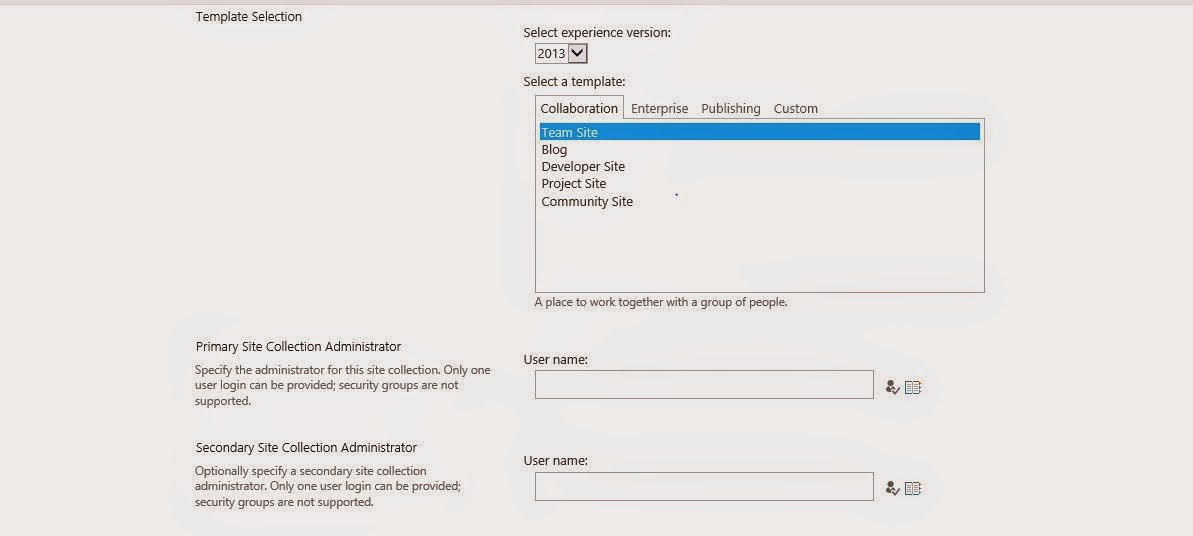
Template Selection :
We can select one of the available templates provided by the SharePoint . We can also create our own templates.
Site Collection Administrators :
We can provide max two site collection administrators.

Within few seconds we can able to see our newly created site Collection as below.


At the time of creating the site Collection if we select Experience version to 2010 .
Then the created site collection looks as below screen.

This is one of the ways of creating the site collection in SharePoint 2013.
Thanks for visiting my blog .Hope this post will help you
If you like my post please Share your Ideas.
How to create sub site in SharePoint 2013
Hi Friends,
I will show you how to create a new sub site in SharePoint 2013.
Unlike SharePoint 2010 , we dont have option to create new Site under (Settings icon ) in SharePoint 2013.
In SharePoint 2013 ,only one extra Click we need to have for creating SharePoint Site .
Settings Icon -->Site Contents---> new Subsite


How to Create Site Column in SharePoint 2013
Hi Friends,
Today i will describe you about the site columns in SharePoint 2010,2013.
Site Column :
A Column which can be created at root site level and can be accessible inside all the available child sites or Sub Site 's Lists or Document Libraries under the root site .
Purpose :
Some times we get a situation where some columns inside lists or doc libraries needs to be created multiple times and use them. So at that time instead of creating a column inside of each and every list simply we can create a site Column at root site level .
Then we can use the site column just by adding to list .
Please find the below steps for creating Site Column using Out of feature .
select settings Icon --->Site Settings
Under Designer Galleries --Click on Site Column
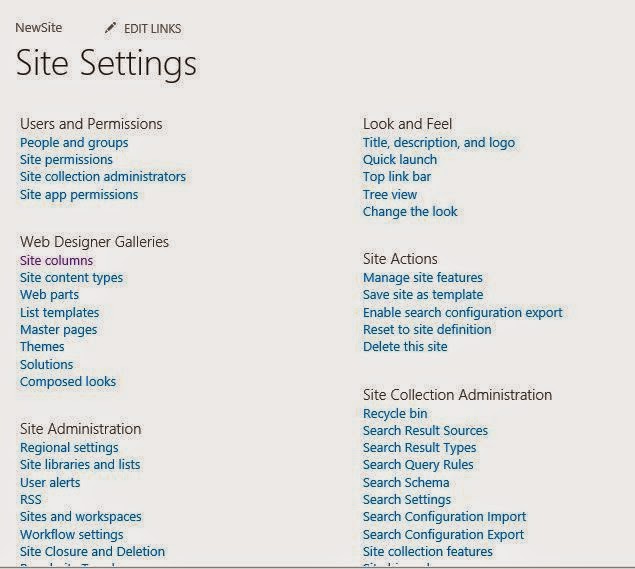
By Default we can see all the list of Site Columns provided by SharePoint .
To Create a new site column . Click on Create

Give Column Name and select Data Type for the column

Here , If we want to create a new group we can also create new group or we can use existing group but for our understanding i have created a new gropName "NewSiteColumn"


Now you can see , newly created group (newSiteColumnGroup) along with Site Column.

Now we add the Site Column to your list say (Student List created already ).
Select list -->Click on List Settings


Click on Add From exsiting site columns and click on OK

Now go the List and click on add new item .
You will be seen the Site Column.as below .

This is how we create new Site Columns in SharePoint 2010, 2013 .
Guys ,
Thanks for visiting my blog .Hope this post will help you
If you like my post please give comments .
Thanks in advance
Tuesday, October 28, 2014
Get Latest Version of a SharePoint List Item in 2010,2013
Hi Guys ,
Some times we come across a situation where we need to know the latest list item version .
Please find the method to get the latest list item version using Server object model.
Public SPListItem TopListItemVersion(SPListItem item)
{
if ((item.Versions != null) && (item.Versions.Count > 0))
{
SPListItemVersionCollection versions = item.Versions;
SPListItem latestItemversion;
if (item.Versions.Count > 1)
latestItemversion= item.Versions[item.Versions.Count - 1].ListItem;
else
latestItemversion= item.Versions[0].ListItem;
return latestItemversion;
}
else
return item;
}
Subscribe to:
Posts
(
Atom
)